Member Management
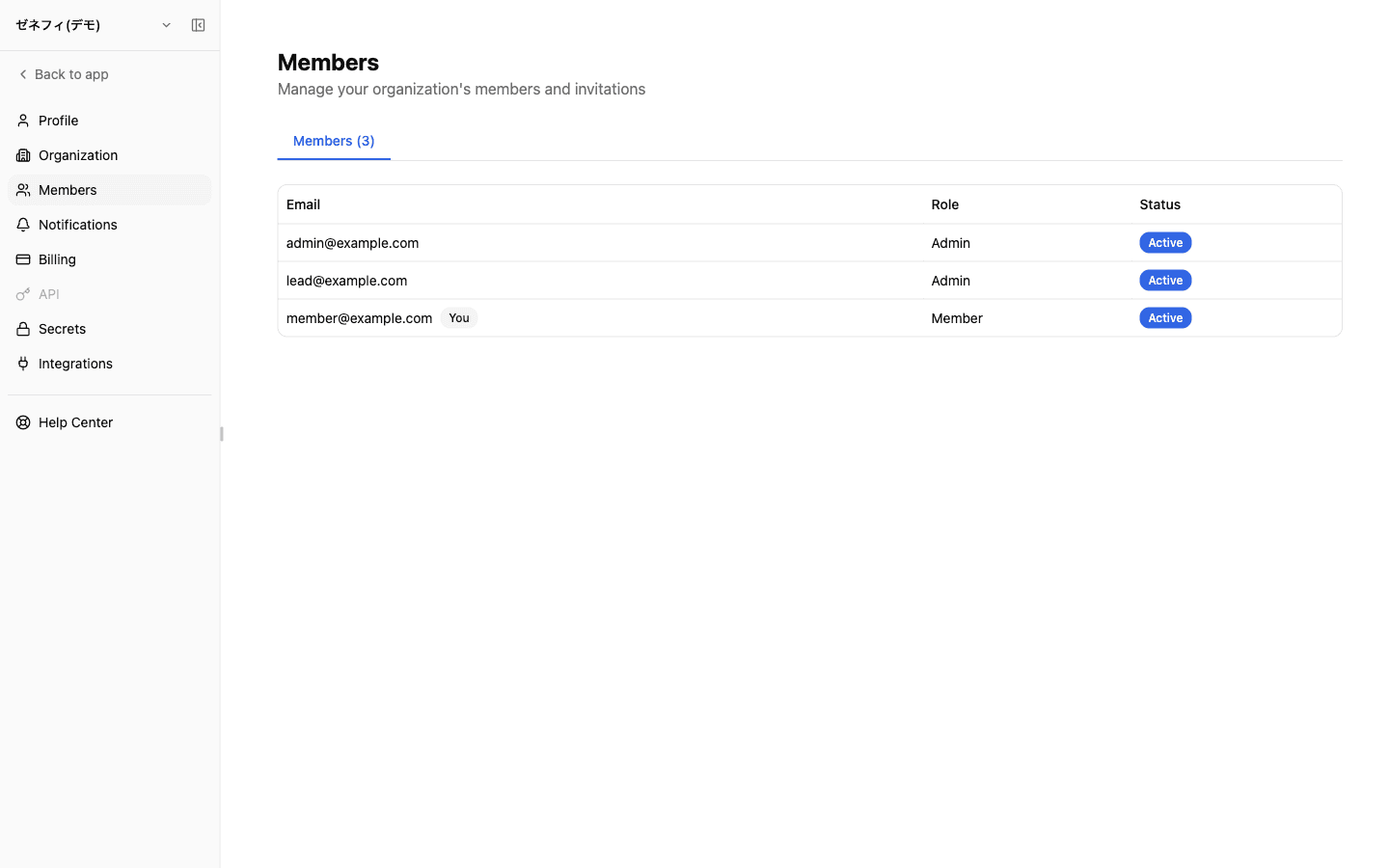
Member Management lists organization users with their email, role, and status. Zemu has only two roles, Admin and Member, so authorization boundaries collapse easily into "everyone is admin" if you don't watch it. The Slack @Zemu /link binding is a separate concept from Zemu organization membership, which is the other common confusion.
Overview
The two-role (Admin / Member) structure, how invitations work, why Slack user linking is a different concept, and the leaver-handling order — three layers people commonly miss.
Basics
Two roles (Admin / Member) and the "You" badge
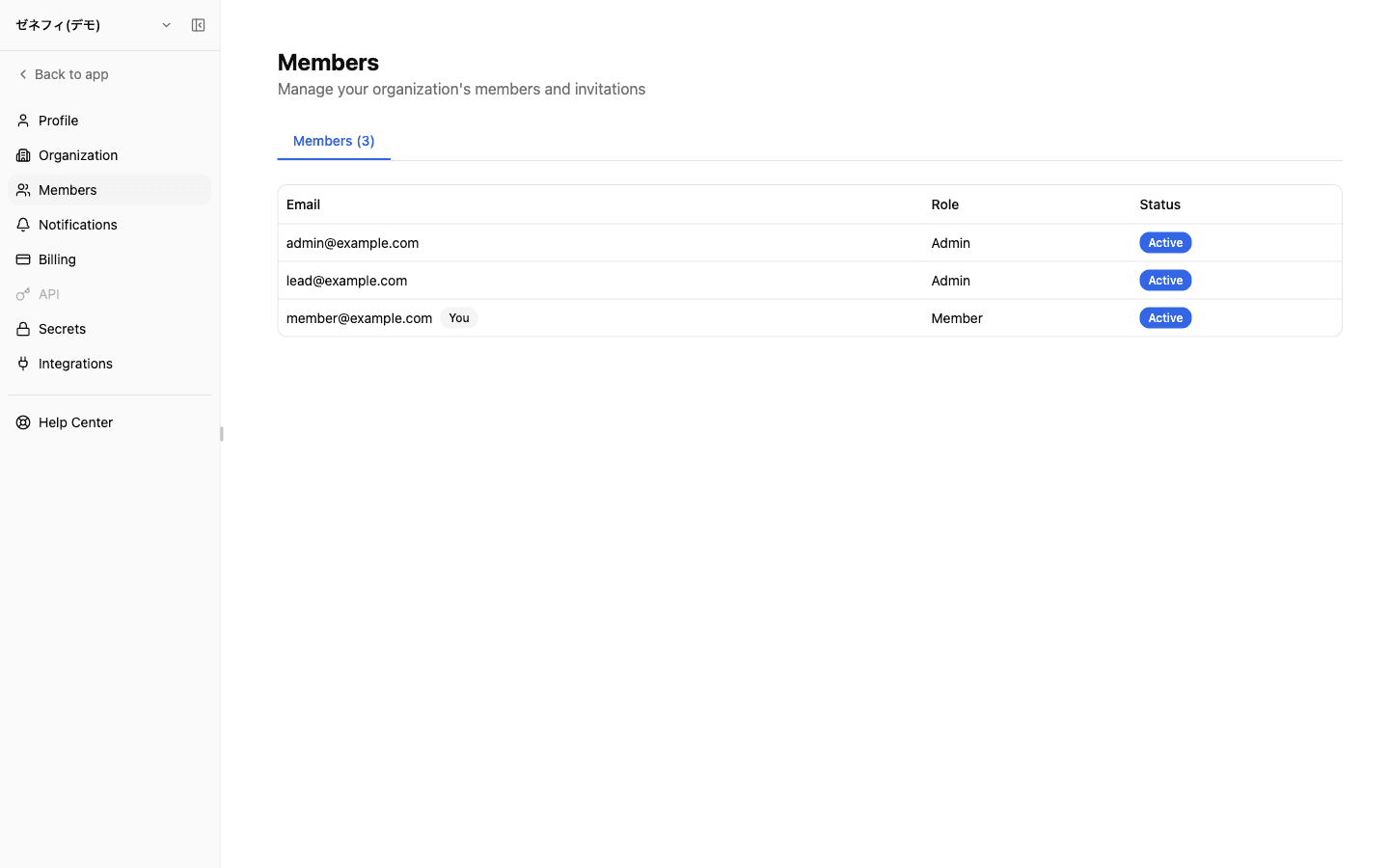
The Members table at /settings/members has three columns.
- Email — the Zemu account email. Your own row is marked with a
Youbadge - Role —
AdminorMember, only two states - Status —
Activeis the only state shown here (pending users live in the Invitations tab)
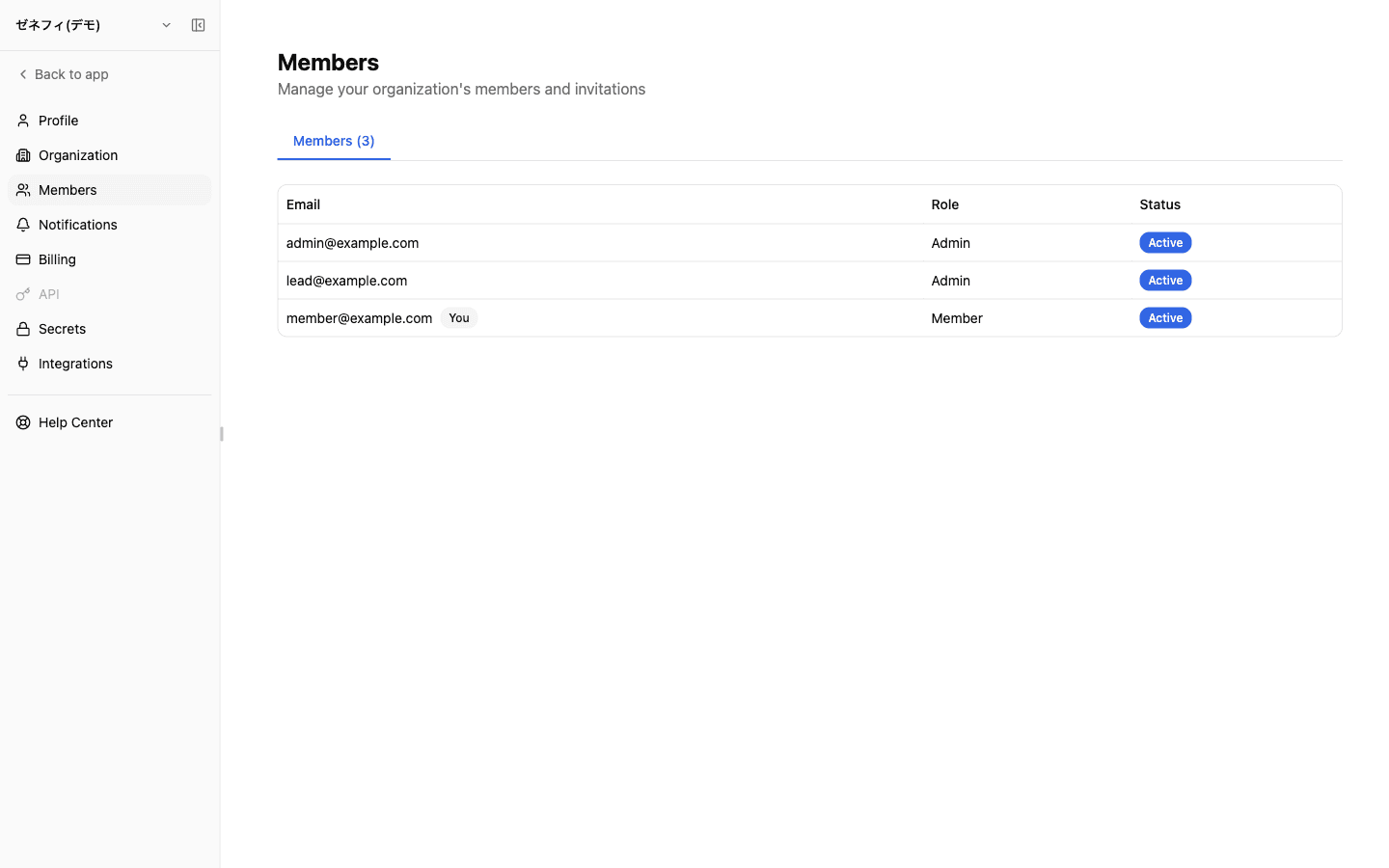
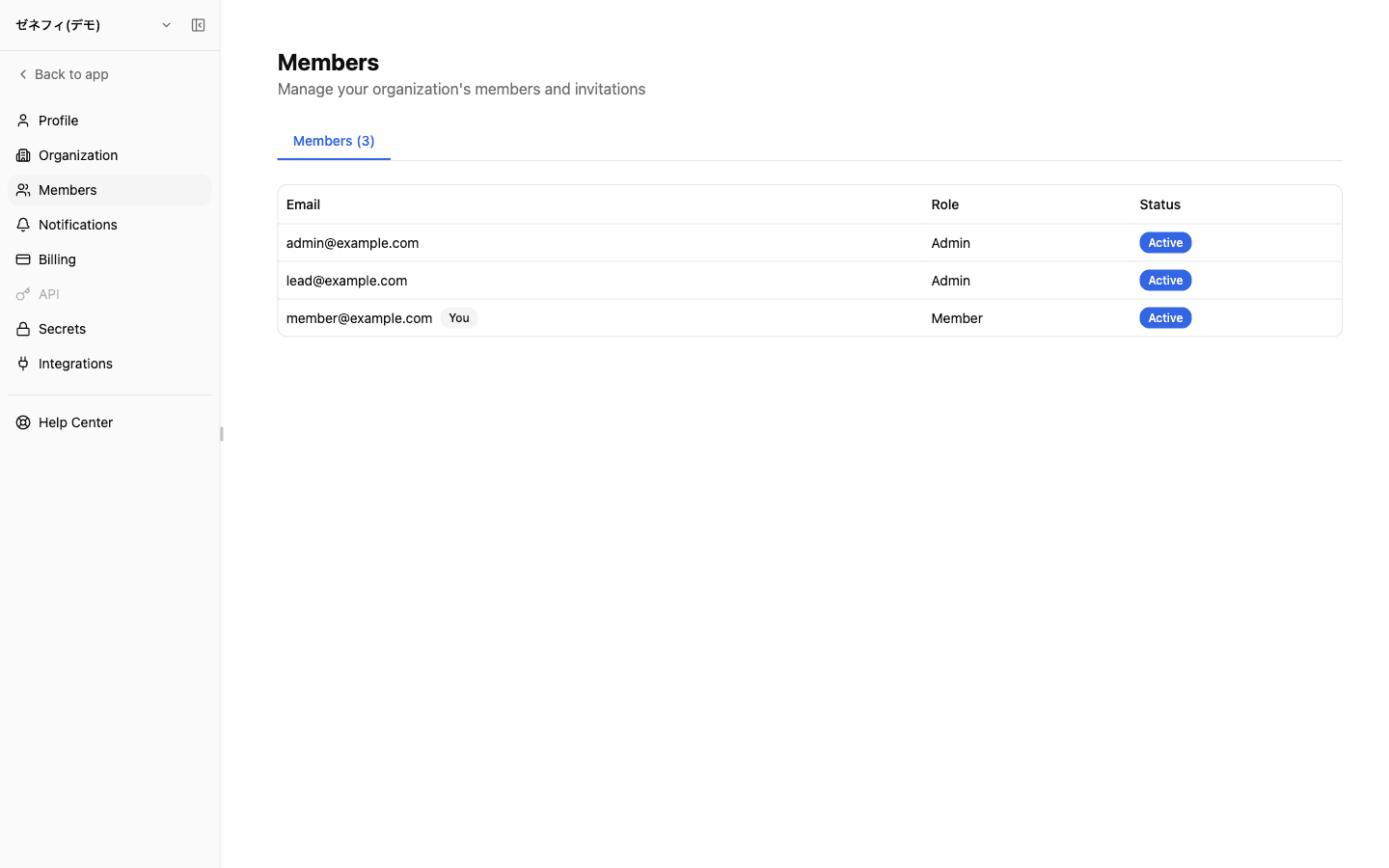
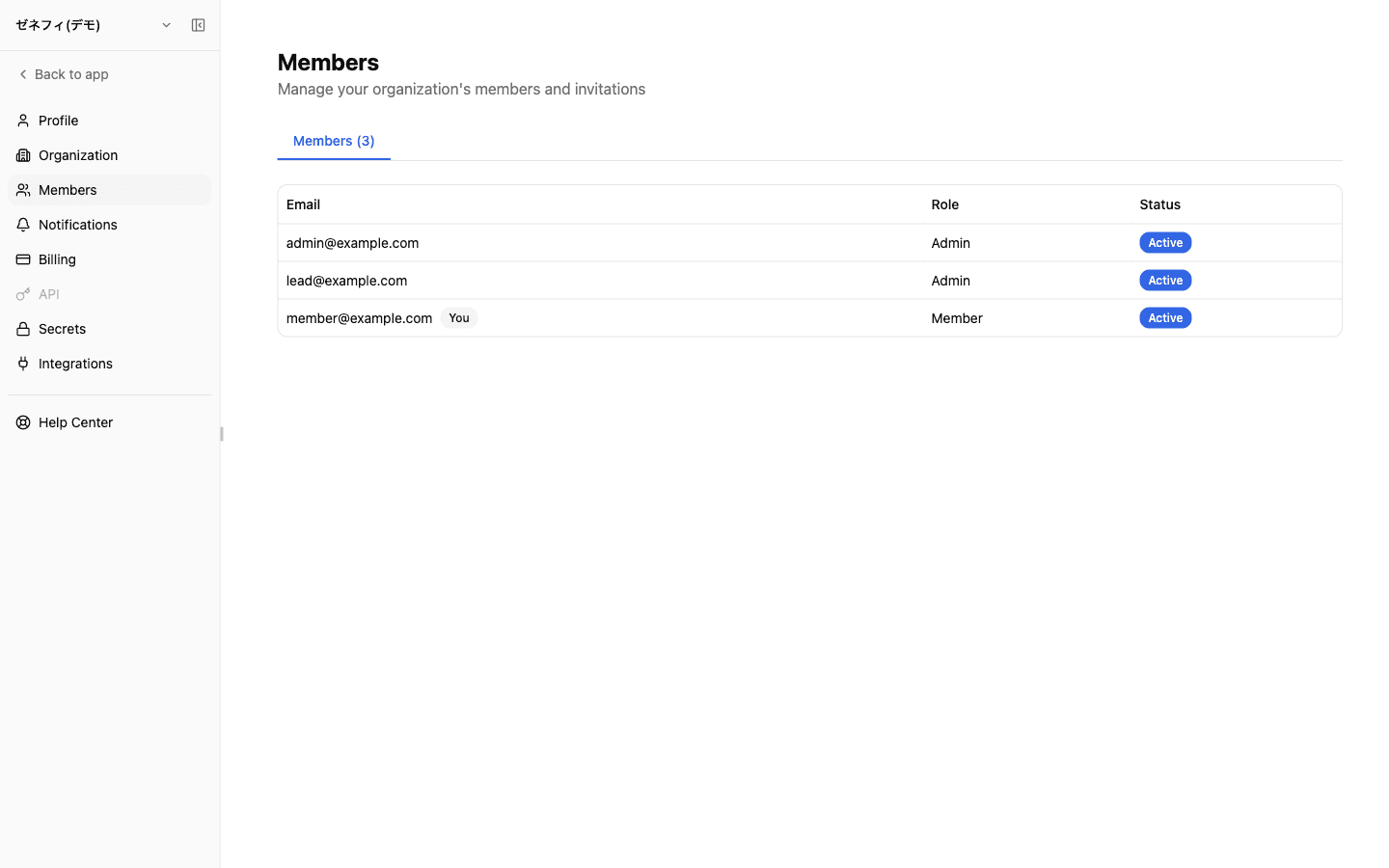
The demo org in the screenshot has three users (two Admins and one Member); the row that is yours is marked with a You badge. The role distinction is operational: only Admins can invite, change roles, or remove members.
What only admins can do
Admin-only actions:
- Invite new members by email + role (multiple emails accepted in one go)
- Change role between Admin and Member for anyone but yourself
- Remove a member from the org
- Copy invitation URL or cancel a pending invitation
A non-admin sees the same screen but with no actionable controls — "the invite button is missing" usually means the user has the Member role.
The most common authorization slip is inviting at the wrong role. There is no post-send role edit on a pending invite — if you invited someone as Admin by mistake, cancel the pending invite and re-send with the correct role.
Invitation links and expiration
Sending an invitation creates a pending entry in the Invitations tab. The invitee receives a tokenized URL by email; opening it during sign-up or sign-in joins them to the org.
Invitation links expire 7 days after creation. After that the recipient cannot join — an Admin needs to re-send.
Operational notes:
- Treat invitation URLs as secret — anyone who opens the URL can join, so confirm the recipient before pasting it into Slack or chat
- Sweep the Invitations tab regularly — leftover unused invites are a slow leak that lets unintended people join later by accident
- Wrong role on a pending invite — cancel and re-issue; you cannot edit roles on the pending entry
User linking, leaver handling, and admin pruning
Three things that are easy to miss in member management:
1. External chat user linking is different from org membership
Launching a worker via inbound channels needs a @Zemu /link binding between the chat user and the Zemu user. That is an authentication link, not Zemu organization membership — removing someone from Zemu does not always sever the chat-side link.
2. Leaver handling When you remove a member, OAuth profiles they created and assets they own become a question (OAuth profiles are owner-scoped credentials and cannot be inherited by other users). Before removing the member:
- Recreate any shared OAuth profiles under a different account
- Reassign or hand off triggers, workers, and other assets they own
- Then remove the member
3. Admin pruning Admin is powerful: invitations, removal, role change, and billing access. "Everyone is admin" runs are an incident waiting to happen. Keep at least 2 admins (so you don't lock yourself out) but no more than necessary; everyone else should be Member.
Checklist
Is Admin granted only to the people who actually need it, with at least 2 but not more than necessary?
Have you adopted the 7-day invitation expiry as a routine, including periodic cleanup of pending invitations?
When someone leaves, do you do "hand off OAuth profiles → reassign owned assets → remove from members" in that order?