トリガー
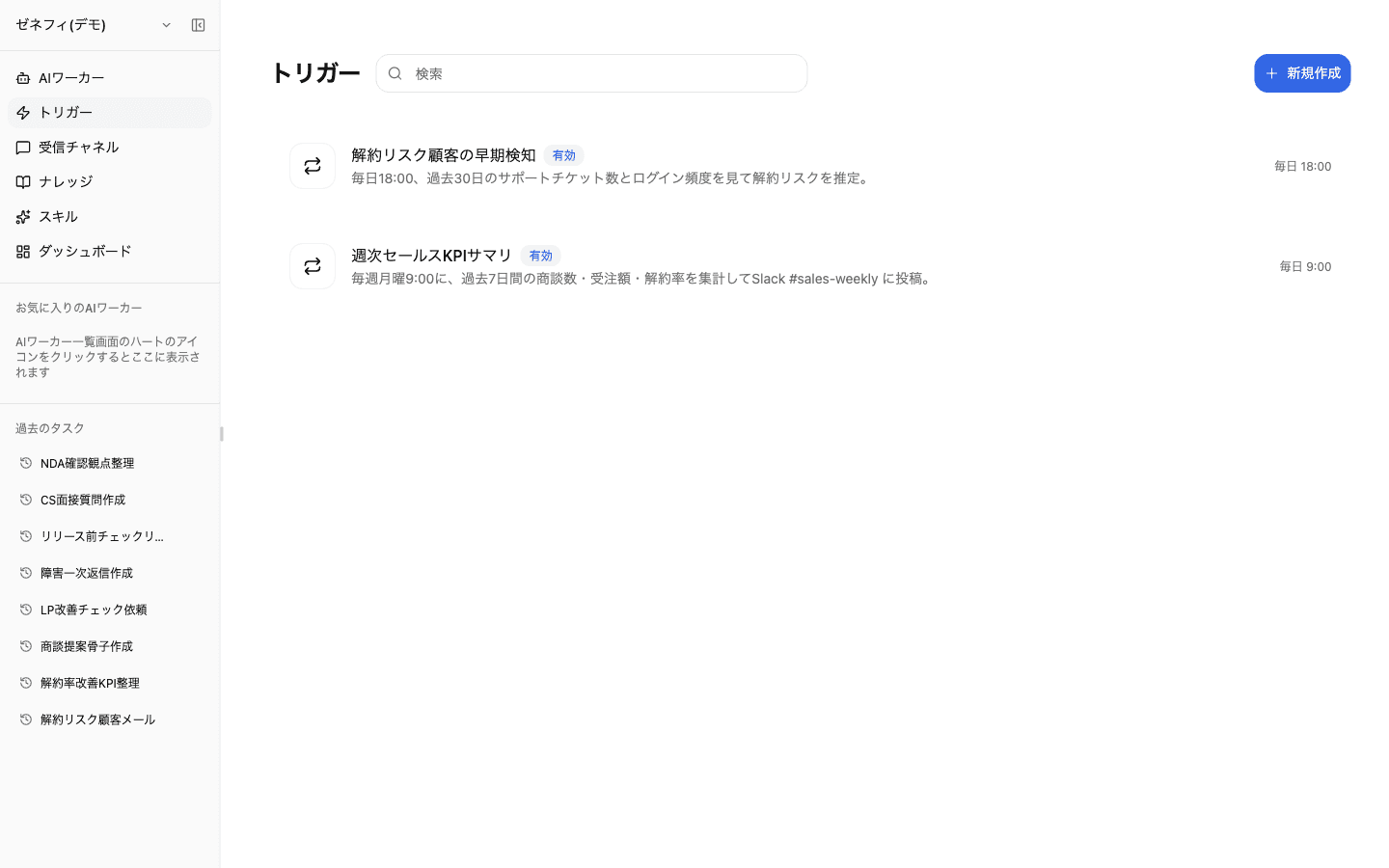
トリガーは、決まった時刻や外部イベントを起点にAIワーカーを自動実行する機能です。Zemu のトリガーは「スケジュールトリガー」と「イベントベーストリガー」の2種類で、Slack/Discord/LINE WORKS の人間メッセージから起動する設定はトリガーではなく 受信チャネル 側で扱います。詰まりやすいのは timezone の取り違えと、通知先の解決順序です。
概要
2種類のトリガー型、スケジュールの4モードと timezone、トリガーが保持するスナップショット、通知先の3層解決など、自動実行の挙動でつまずく箇所を整理します。
基本
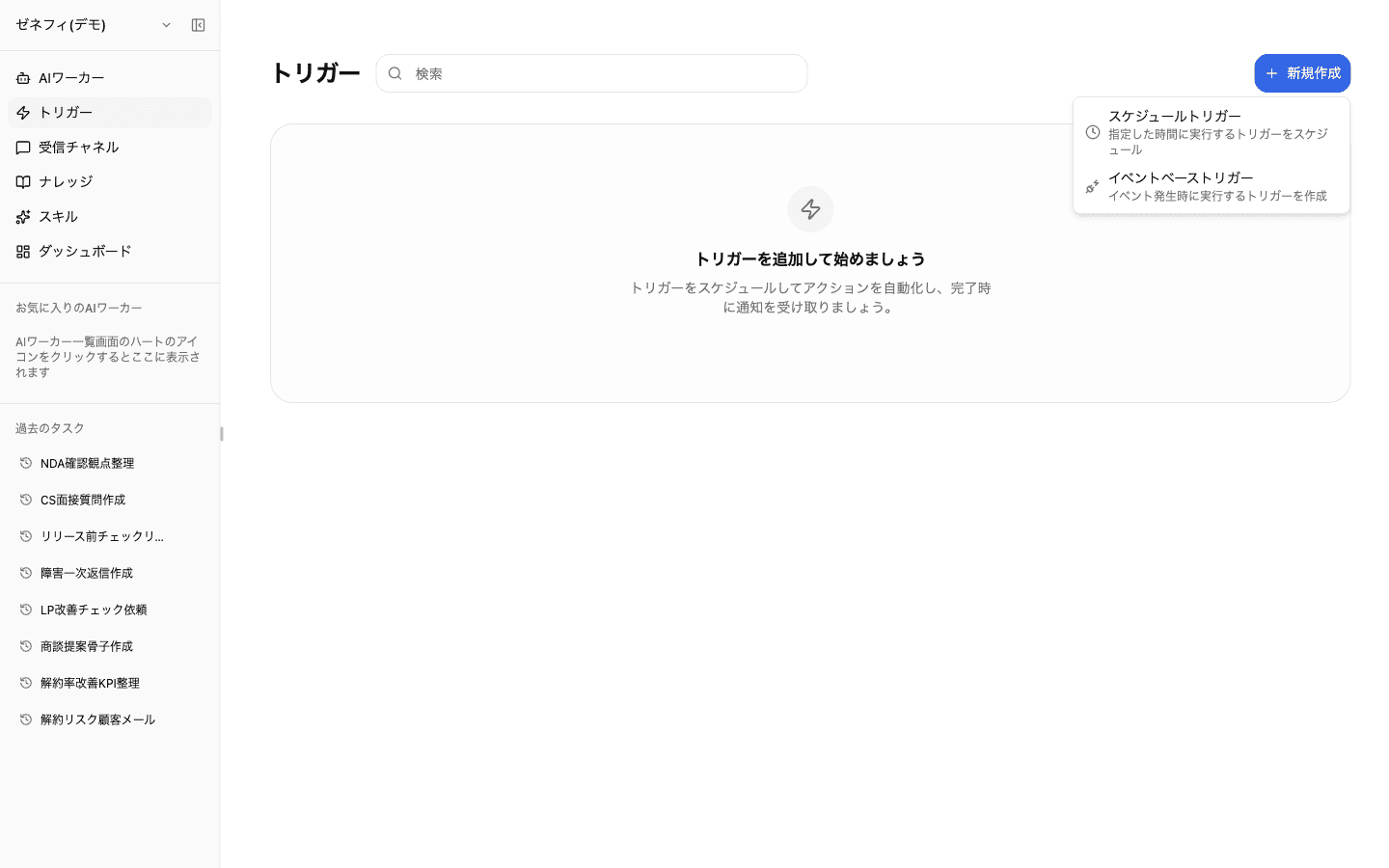
2種類のトリガー(スケジュール/外部イベント)
新規作成ボタンから選べるのは2種類です。
- スケジュールトリガー:指定した時刻に実行(cron/繰り返し/一回だけ)
- イベントベーストリガー:Composio 互換の OAuth イベント発生時に実行(GitHub PR open、Stripe invoice.paid など)
Slack のメンション・DM・チャンネル投稿で起動する設定は ここではなく 受信チャネル(/channels) 画面で扱います。トリガー画面で Slack 起動を探しても見つからないので注意してください。
スケジュールの4モード と timezone
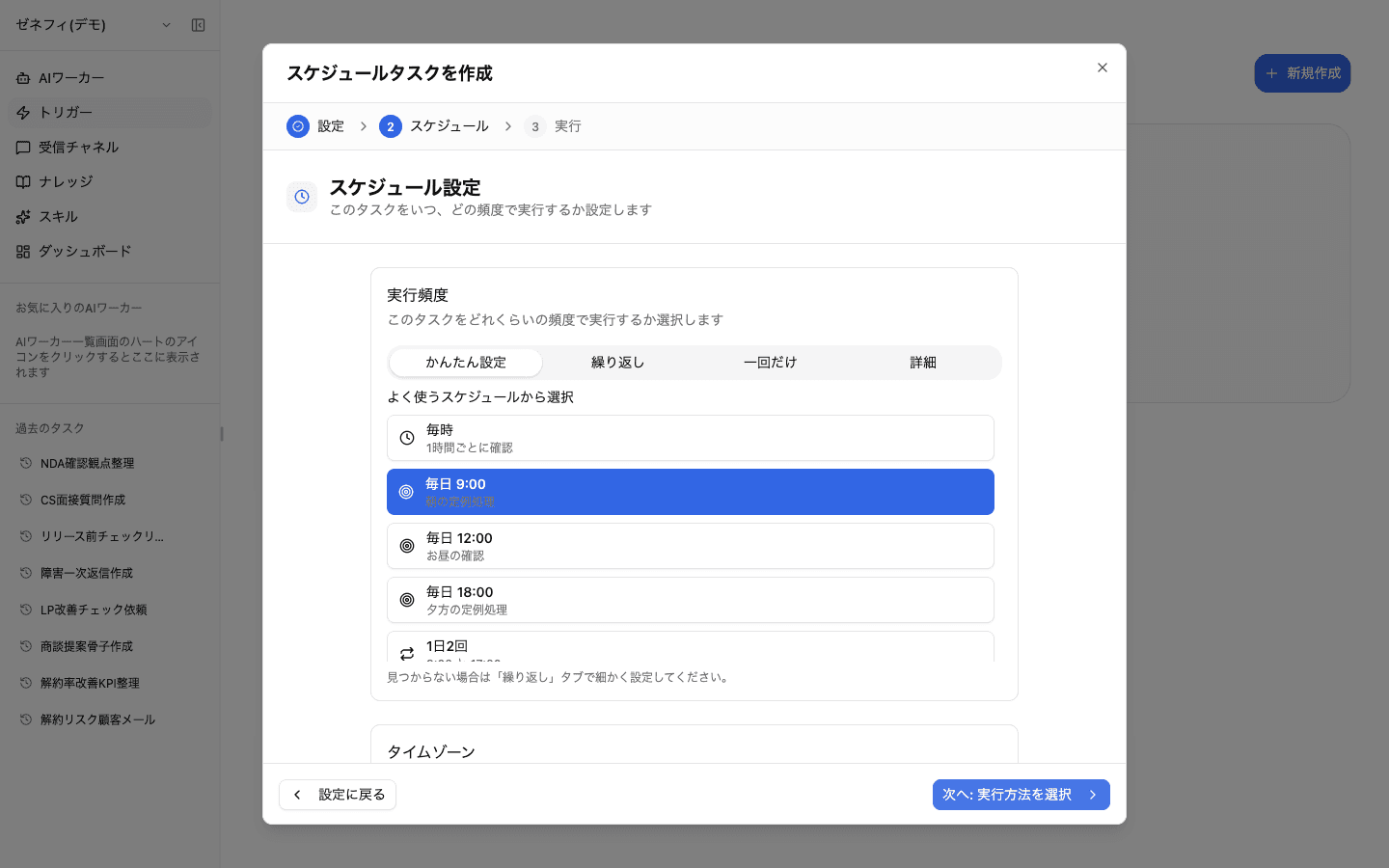
スケジュール設定の「実行頻度」には4モードがあります。
- かんたん設定:「毎時/毎日 9:00/毎日 12:00/毎日 18:00/1日2回」など、よく使う候補から選ぶ
- 繰り返し:日次・週次・月次のフォーム
- 一回だけ:特定日時を1回だけ実行
- 詳細:Cron 式を直接入力。最小間隔は1時間、
*/5 * * * *のような分単位は使えません
「タイムゾーン」を明示しないと、意図しない時刻に実行されることがあります。アカウントのタイムゾーン設定や、すでにある同じワーカーの他トリガーに揃えるのが安全です。曖昧なまま local や UTC に倒さず、明示してください。
トリガーは作成時のスナップショット
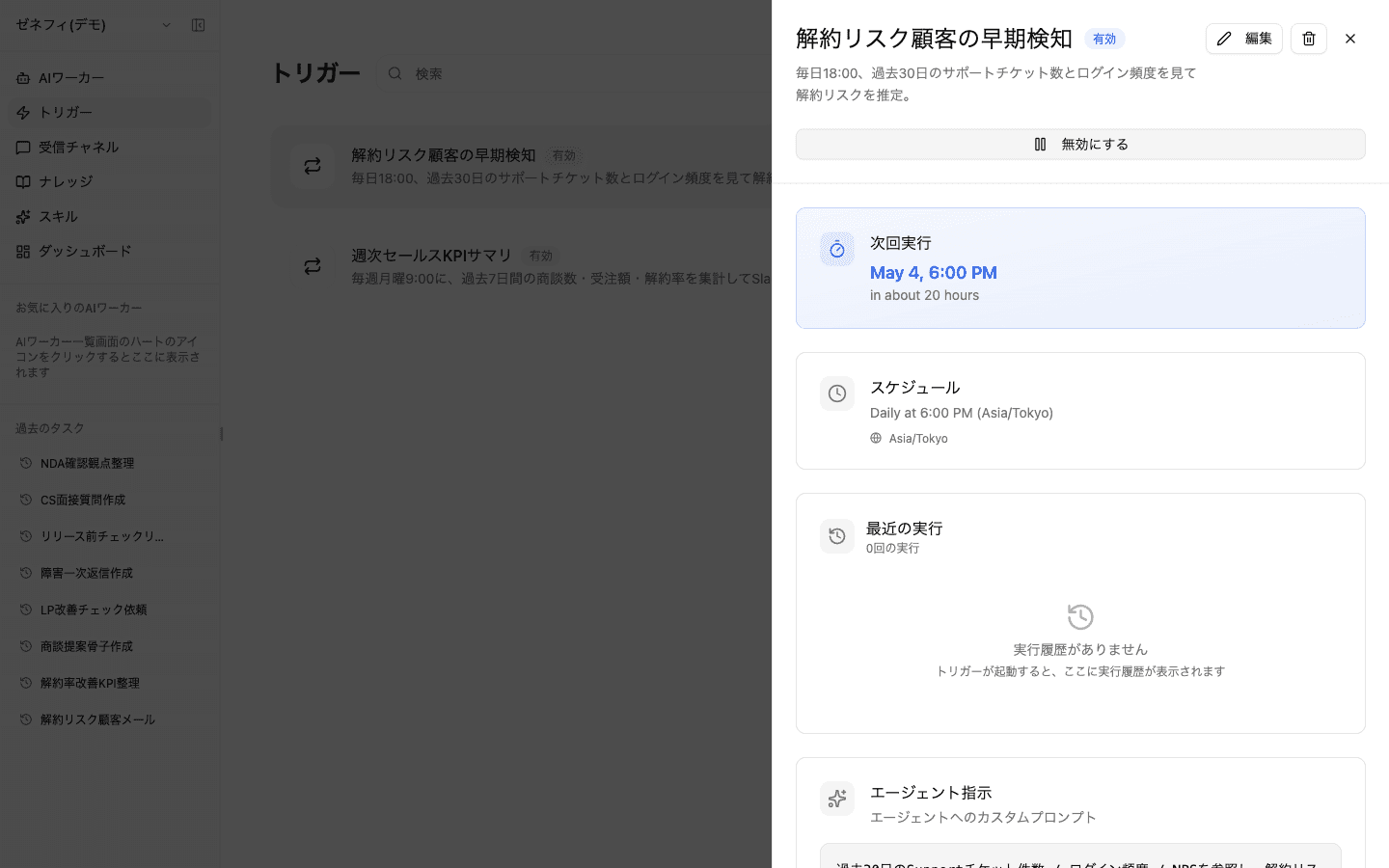
トリガー詳細パネルでは「次回実行」「スケジュール(タイムゾーン込み)」「最近の実行履歴」「エージェント指示(カスタムプロンプト)」が確認できます。
重要な性質:トリガーは 作成時のプロンプトとモデルをスナップショットとして保持 しています。後からワーカー側のシステムプロンプトを変更しても、トリガー本体のカスタムプロンプトは自動更新されません。通知先は別で、トリガー個別に指定した場合だけ上書き設定を保持し、未指定なら実行者本人の現在の通知設定に従います。
失敗時の切り分け順序は「起動条件 → エージェント指示 → 連携権限 → 参照ナレッジ → 通知先」。まずは手動実行で同じ指示を流し、再現するか確認すると切り分けが速くなります。
通知先の解決(トリガー個別 → 実行者本人の既定)
Slack / Discord / LINE WORKS の会話からワーカーにトリガー作成を依頼した場合、依頼元チャンネルをそのトリガーの初期上書き設定として保存します。後から編集すると初期値は置き換わり、別の優先レイヤーとしては残りません。
実行時は次の2段階で通知設定を解決します。
- トリガー個別の通知設定:依頼元チャンネルから初期設定された値も、作成・編集画面で明示した値も、保存後は同じ個別設定です。
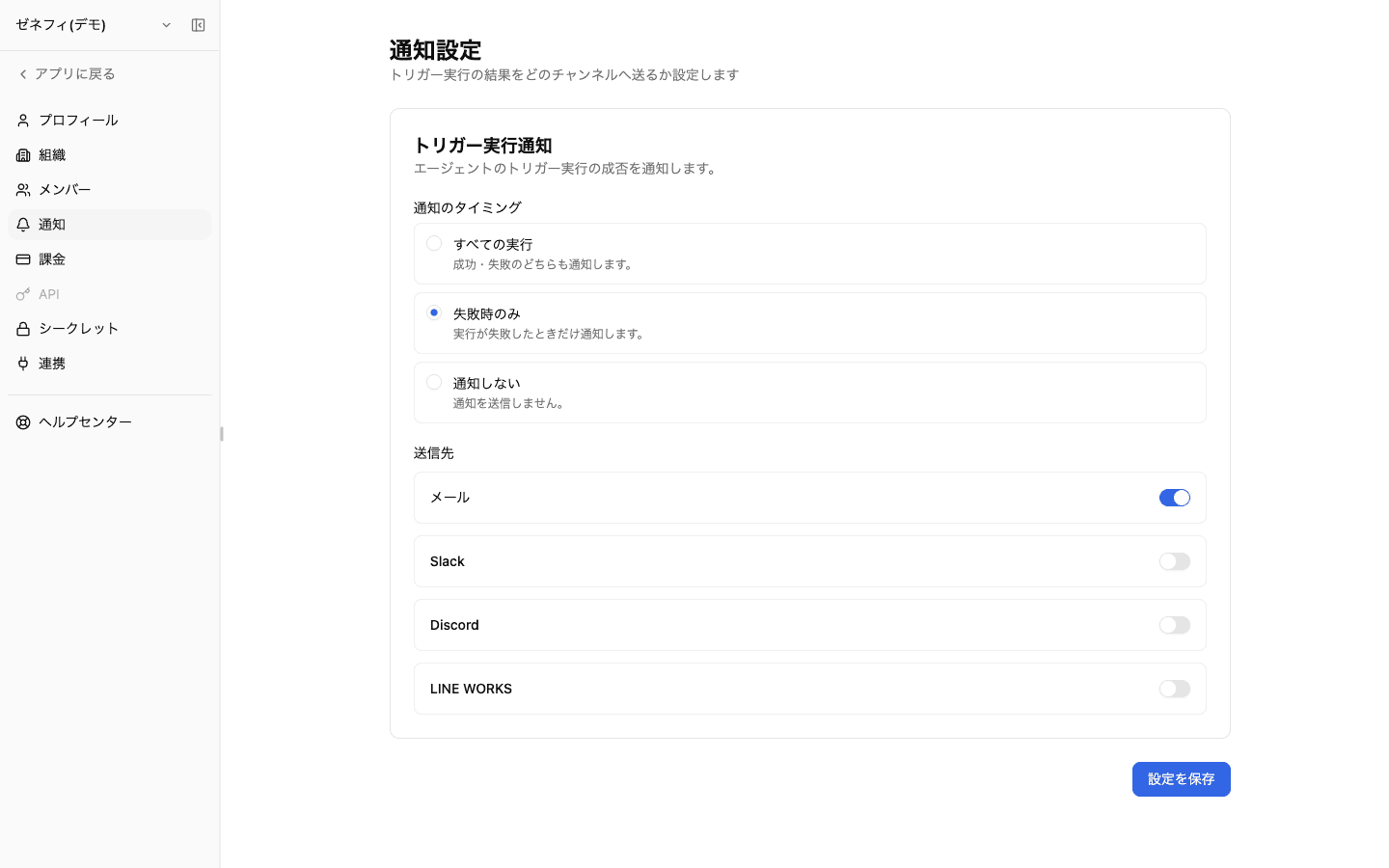
- 実行者本人の既定(設定→通知):トリガーに上書きがない場合だけ使用。「すべての実行/失敗時のみ/通知しない」と送信先(メール/Slack/Discord/LINE WORKS)を選び、組織オーナーや他メンバーへは自動配信しません。
落とし穴:
- 「通知しない」を選ぶとメールも止まる(外部チャットだけ無効化したい場合は別の挙動)
- プロファイル変更でチャンネル選択がリセットされる
- Slack/Discord/LINE WORKS をオンにするには、それぞれ受信チャネル側で接続プロファイルを先に作る必要がある
確認ポイント
このトリガーの実行頻度・タイムゾーン・最小間隔(1時間以上)が、業務時間や利用者の地域と合っていますか?
ワーカー側のシステムプロンプトを変更しても、トリガー本体のカスタムプロンプトは追従しないことを把握していますか?必要なら「編集」で同期しましたか?
実行時の解決順序(トリガー個別 → 実行者本人の既定)を理解した上で、必要な人に必要な通知だけが届く設定になっていますか?