Notification Settings
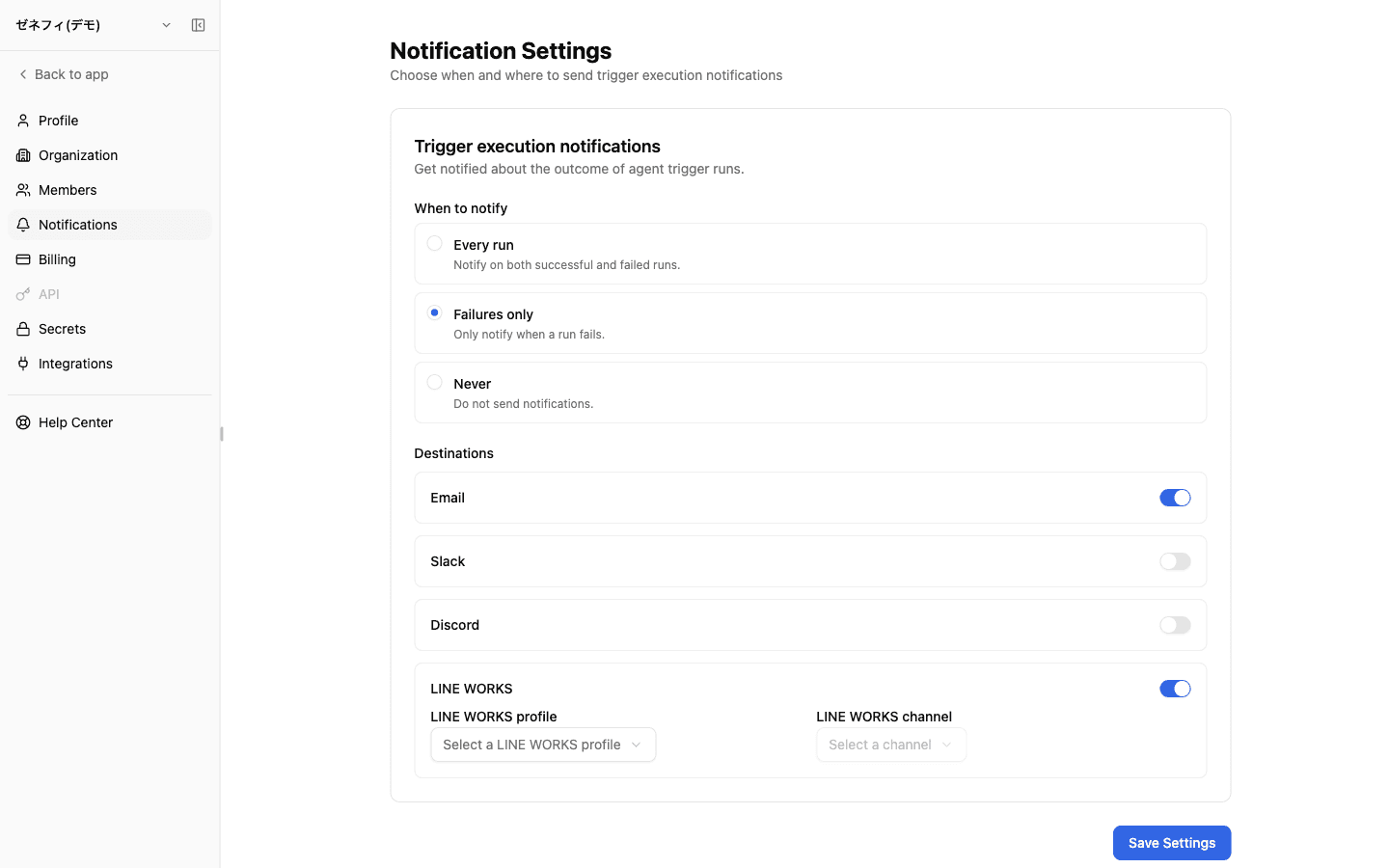
Notification Settings is where each user chooses external destinations for approval requests and completed tasks from Web-started Workers, and for their trigger results (success or failure). It uses the executor's own settings and does not fan out to an account owner or other members. Inbound Channels remain a separate entry point for launching Workers from Slack and other external chat services.
Overview
How Notification Settings and Inbound Channels differ; where Web approval requests, task completions, and trigger results are sent; per-trigger overrides; and the profile-reset gotcha.
Basics
Notification Settings and Inbound Channels have different roles
These interfaces do different jobs.
- Notification Settings (
/settings/notifications) — decide where Web approval requests, task completions, and your trigger results are sent (next sections) - Inbound Channels (
/channels) — the entry point for launching AI Workers from Slack, etc.; approval UI and the final response for an external-channel run return to that originating conversation
"I'm not getting Slack notifications" and "I can't launch a Worker from Slack" are different problems — identify which interface owns the behavior before changing settings.
Three timings × four destinations
/settings/notifications has three timing choices and destination toggles for email, Slack, Discord, and LINE WORKS. For the exact events included by each timing, use the description shown with each choice in the app as the source of truth.
To use an external chat destination, first create its connection profile under Inbound Channels. These are the executor's personal destinations; Zemu does not automatically fall back to an account owner or another member.
"Never" overrides destination toggles (timing wins)
Gotcha: timing dominates the destination toggles.
- Setting timing to "Never" stops email even with the email toggle on.
- To silence external chat but keep email, leave timing on "Every run" or "Failures only" and turn off only the Slack / Discord / LINE WORKS toggles.
Resolution order overall:
- Timing (every run / failures only / never) is the gate
- Destination toggles apply within whatever timing allows
- Per-trigger overrides can deviate from the executor's personal default for a specific trigger
Combining personal defaults with per-trigger overrides lets you say "failures-only Slack for my usual triggers, but every run via email for the monthly report."
External chat needs a profile first; profile change resets the channel
To enable Slack / Discord / LINE WORKS destinations, you need a connection profile created on the Inbound Channels page first. Without one, flipping the toggle does nothing — the destination card has no profile to point at.
UI behaviors worth knowing:
- Changing the profile resets the channel selection (so channels from one workspace don't bleed into another)
- Slack and Discord pull channel lists from the API; you do not type channel IDs
- LINE WORKS sometimes can't list channels; in that case enter the channel ID manually
Verification: after saving, run a representative trigger manually once and confirm the message lands in the configured profile × channel.
Checklist
Can you explain the difference between Notification Settings and Inbound Channels to a new team member?
Are you treating timing (every run / failures only / never) as the gate that overrides destination toggles?
Have you set up the underlying Inbound Channels profile for each external chat destination, and accounted for the channel-reset behavior on profile change?